The Swiptv VPN speaks WireGuard. Behind that name sits a modern, lightweight tunnel, and above all a small text file that most providers know how to give you. Here is what it contains, where to find it, and why two big names in the VPN world will never hand it over.

A VPN is a tunnel
Let us start at the beginning. A VPN is a tunnel. Everything your device sends goes into it, comes out of a computer somewhere else, and only then reaches the internet. Your internet provider no longer sees a list of what you visit, only a single connection to the tunnel.
To dig that tunnel, your device and the server have to agree on a common language. That language is called a protocol. WireGuard is one of them.
WireGuard in a nutshell
WireGuard is the newcomer of the family, and it has become the industry default in just a few years. It made its way into the core of Linux in 2020, which in that world counts as a certificate of seriousness.
What makes it stand out comes down to a number. Where the previous generation of protocols ran to hundreds of thousands of lines of code, WireGuard fits in a few thousand. Less code means fewer places for a flaw to hide, and a program specialists can actually read from end to end.
Another choice that matters: WireGuard does not negotiate its encryption. Older protocols start by discussing which method to use, and that discussion is exactly where you can be nudged towards a weak one. WireGuard offers a single modern method, so the question never comes up.
Why Swiptv chose it
Three very practical reasons, all of which you can feel in daily use.
It survives a change of network. You leave the home wifi for mobile data, and the tunnel holds. For a TV app you take on the train, that changes everything.
It is light on the battery. A short protocol means less work to encrypt every video packet, so less battery and less heat during a two-hour match.
Its format is readable. A WireGuard configuration fits in a text file about ten lines long. That is what makes the whole feature possible: you bring that file, Swiptv reads it, and you are connected. No other protocol travels that easily.
What a configuration contains
Six values, no more. Here they are in plain English.
The private key. Your device's identity. Anyone holding it can use your subscription, so this is the sensitive one.
The address inside the tunnel. The address your device takes once it is in. It usually starts with 10.
The server address. A hostname and a port. This single line decides which country you appear to browse from.
The server public key. It proves you reached the real server, and not someone pretending to be it.
DNS. The directory that turns website names into addresses.
MTU. The maximum size of each packet sent.
The first four are enough to connect. The last two are what make the connection genuinely private and stable, and they are precisely the ones people leave out.

Paste the configuration, and Swiptv lists every value it recognised.
The two values you should not lose
They deserve a paragraph of their own, because both failures are invisible.
Without DNS, your device keeps using your internet provider's directory. The result: your traffic is hidden, but your provider still sees which sites you ask for. The leak shows up nowhere, and everything looks like it is working.
Without a suitable MTU, some mobile networks silently drop packets that are too large. That looks exactly like a video refusing to start, and the stream or the app gets the blame.
This is why Swiptv nudges you towards importing the whole file rather than retyping values by hand: the file always carries all six, while manual entry almost always loses the last two.
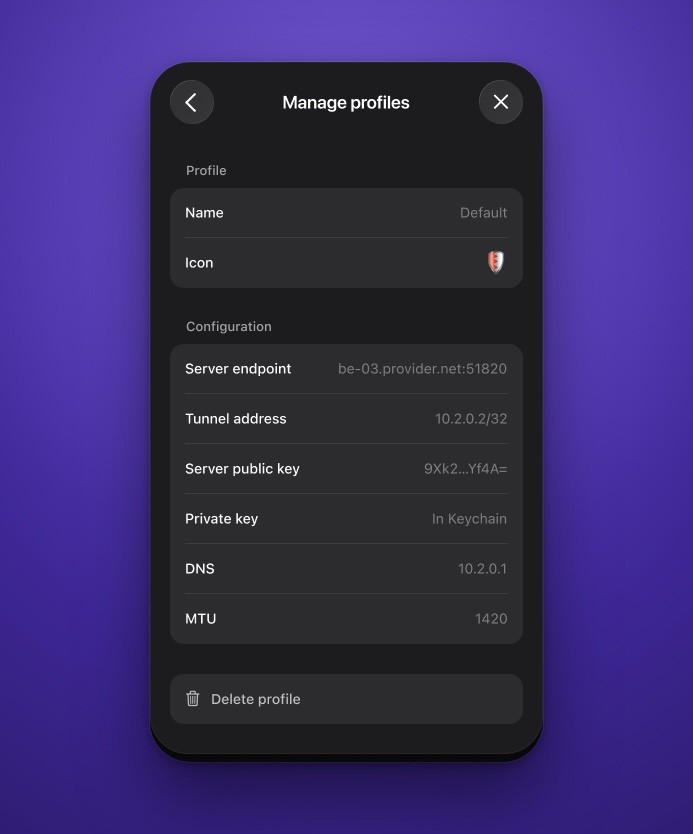
A saved profile: the four required values, plus DNS and MTU.
Where to get a configuration
On your VPN provider's website, not in their app. Look for WireGuard configuration, manual setup or config generator in your account area. Most of them file it under downloads.
Not every provider offers one, and that is worth knowing before you subscribe. NordVPN and ExpressVPN keep their tunnel inside their own app. NordVPN does build on WireGuard, which is why you will find pages saying it supports it, but it never hands you the file. ExpressVPN uses a protocol of its own, so the question does not even arise. In both cases there is nothing to import into Swiptv. Their apps remain perfectly fine for protecting the rest of your device, they simply do not lend their tunnel to another app.
Finally, if you run your own WireGuard server, it produces exactly the same file and Swiptv treats it like any other. Just remember to add a DNS line, because nobody will do it for you.
Your keys never leave the device
When you save a profile, the private key goes straight into the Apple keychain, the vault where your passwords live. It is never shown again, never sent anywhere, and never copied to your other devices. Each device keeps its own profiles, which also means a key that never travels cannot be intercepted on the way.
Getting started
Grab a configuration from your provider, open the Swiptv settings, and import it. Here is what the VPN in Swiptv can do.