
The safest way. Nothing to type.

If your provider gives you a file, take this path. Every value arrives intact, including the two that are easiest to lose.
Before you start
The file has to be somewhere the Files app can reach it. Downloading it in Safari on your device is enough. Sending it to yourself and saving it to iCloud Drive works too.
Step by step
Tap Import a .conf file
Swiptv opens the standard iOS file picker.
Find your file
It normally ends in .conf. Downloaded in Safari, it sits in Files under Downloads.
Check what Swiptv read
The values appear right away. If one says Not set, the file was incomplete, and it is better to notice now than after a failed connection.
Give the profile a name
Swiptv suggests the file name. Something like Belgium evening will be easier to recognise in six months.
Save
The private key goes into the Keychain immediately. Swiptv keeps no copy of the file itself.
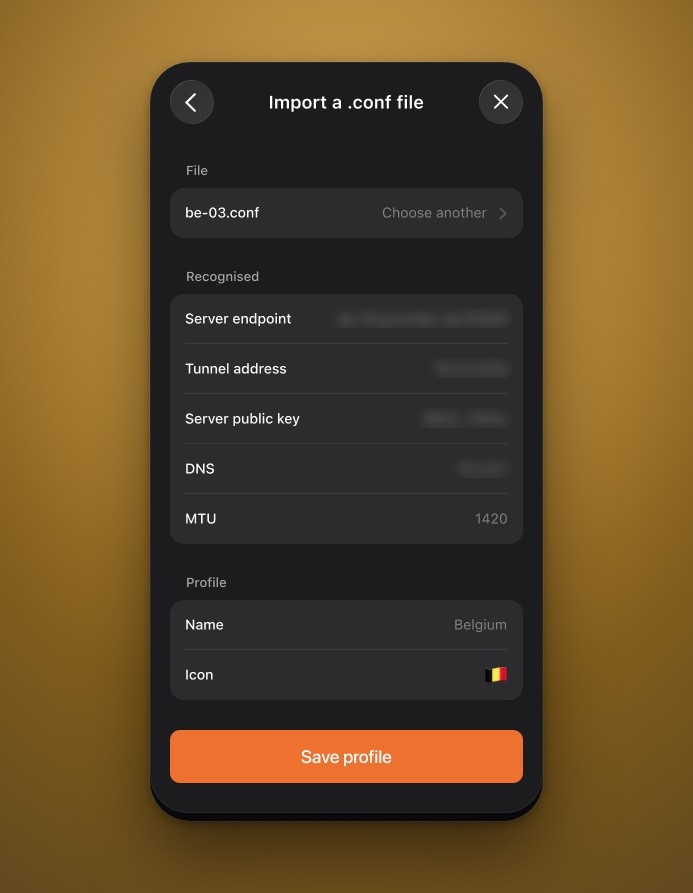
Every value read from the file, before you save.
One file is one server. For a second country, import a second file as a second profile.
If the file appears greyed out
iOS only lets you pick file types the app declared. If what you received is a .txt or sits inside a .zip, open it, select the text and use Paste a configuration instead. The content is identical.